SEOAsist on your desktop
All your sites, approvals and alerts in one window. Run the assistant on your own Claude subscription and connect the AI apps on your computer in one click.
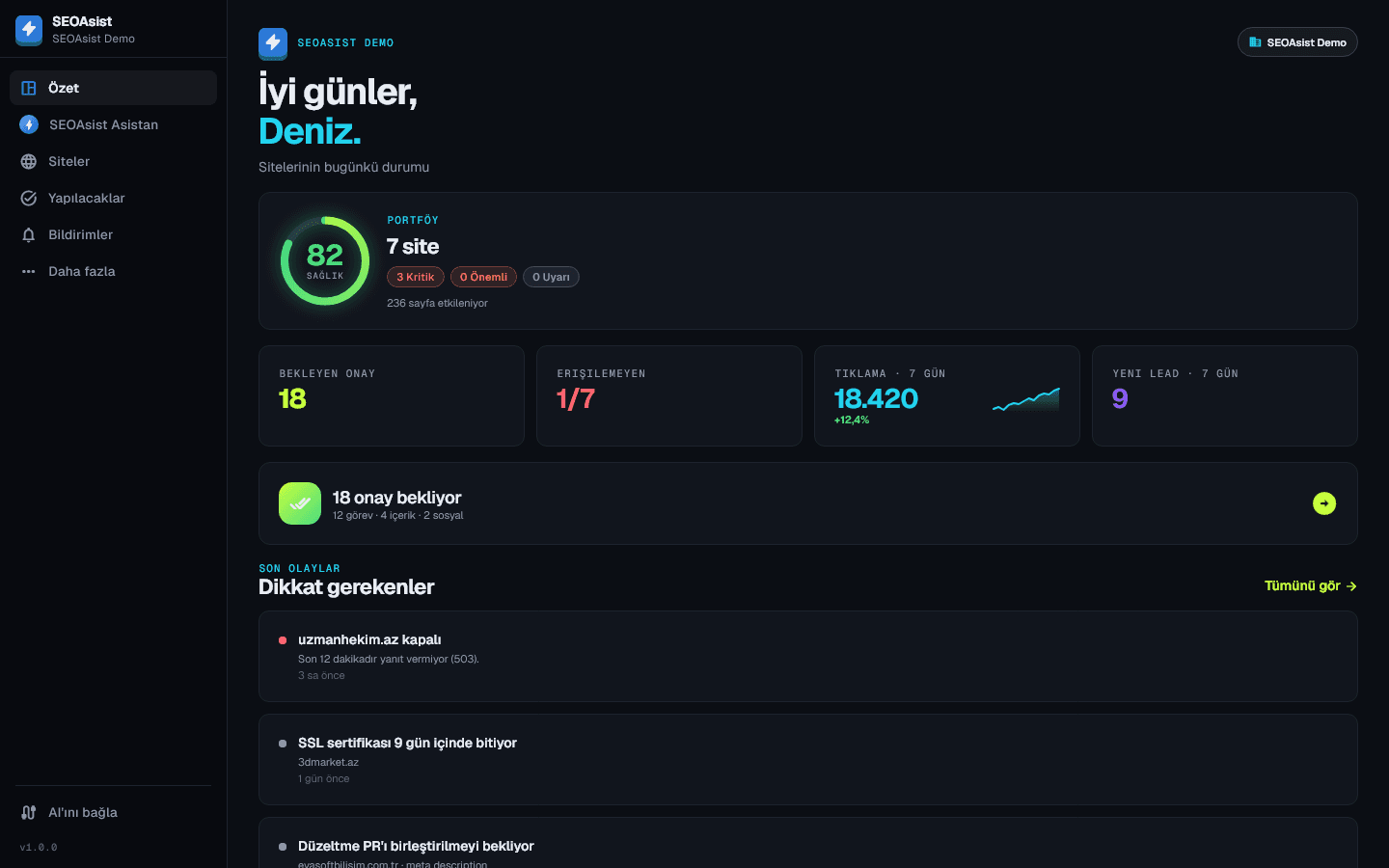
What's inside
Everything in the web panel, with desktop conveniences.
Assistant on your own Claude
If Claude Code or Claude Desktop is on your computer, the assistant runs on your subscription, with no extra AI fee.
One-click AI connection
Add SEOAsist's tools to Claude Desktop, Claude Code, Cursor and VS Code in one click; the config file is backed up automatically.
Tray notifications
Get a desktop notification when a site is down, a fix is ready or something waits for approval; the app keeps running in the tray.
The whole panel in one window
Overview, sites, to-dos, notifications, reports and social media in a wide desktop layout.
Updates with your approval
When a new version is out, the app tells you; press “Update” and it downloads, installs and reopens.
Secure sessions
Session keys are kept in Windows Credential Manager; each device shows up as a separate session in the panel and can be signed out.
Installing on Windows
No admin rights needed; the app installs for your user account only.
- 1
Download and run SEOAsist-Setup.exe.
- 2
If Windows shows “Windows protected your PC”, click “More info” → “Run anyway”.
- 3
Optionally tick the desktop shortcut and start-with-Windows options.
- 4
Sign in with your SEOAsist account; your sites and notifications arrive right away.
FAQ
Is the app paid?
No, the app is free. Your SEOAsist plan applies in the app too; it works on the free plan as well.
Why does Windows show a warning?
The app is new, so Windows SmartScreen doesn't recognize it yet. Download it only from seoasist.com; “More info” → “Run anyway” continues the installation.
How do I use the assistant with my own Claude subscription?
If Claude Code (terminal or VS Code extension) or Claude Desktop is installed, the app finds it automatically and the assistant screen selects “Claude” as the engine.
How do I uninstall it?
Settings → Apps → SEOAsist → Uninstall. Your account and data stay in SEOAsist; only the app on this computer is removed.
Get your first crawl in 5 minutes
Start on the free plan, add your sites, connect Search Console. Bring your team and clients when you are ready.
No credit card required · Cancel anytime